Panic Emergency SMS Opt-In: Form Screenshots
The Watch App LLC — The Watch, Your Safety Circle
This review page and its images can be opened without signing in or enabling JavaScript. The images below document the member form only. The separate public guest flow is available at /sms-information.html.
Actual recipient opt-in flow
- This member-flow proof is separate from the public guest consent page at /sms-information.html.
- The guest flow requires the recipient's own number and one-time verification; it is not represented by these screenshots.
- The member form requires you to confirm the typed number matches your account's own number; manage that number through your profile.
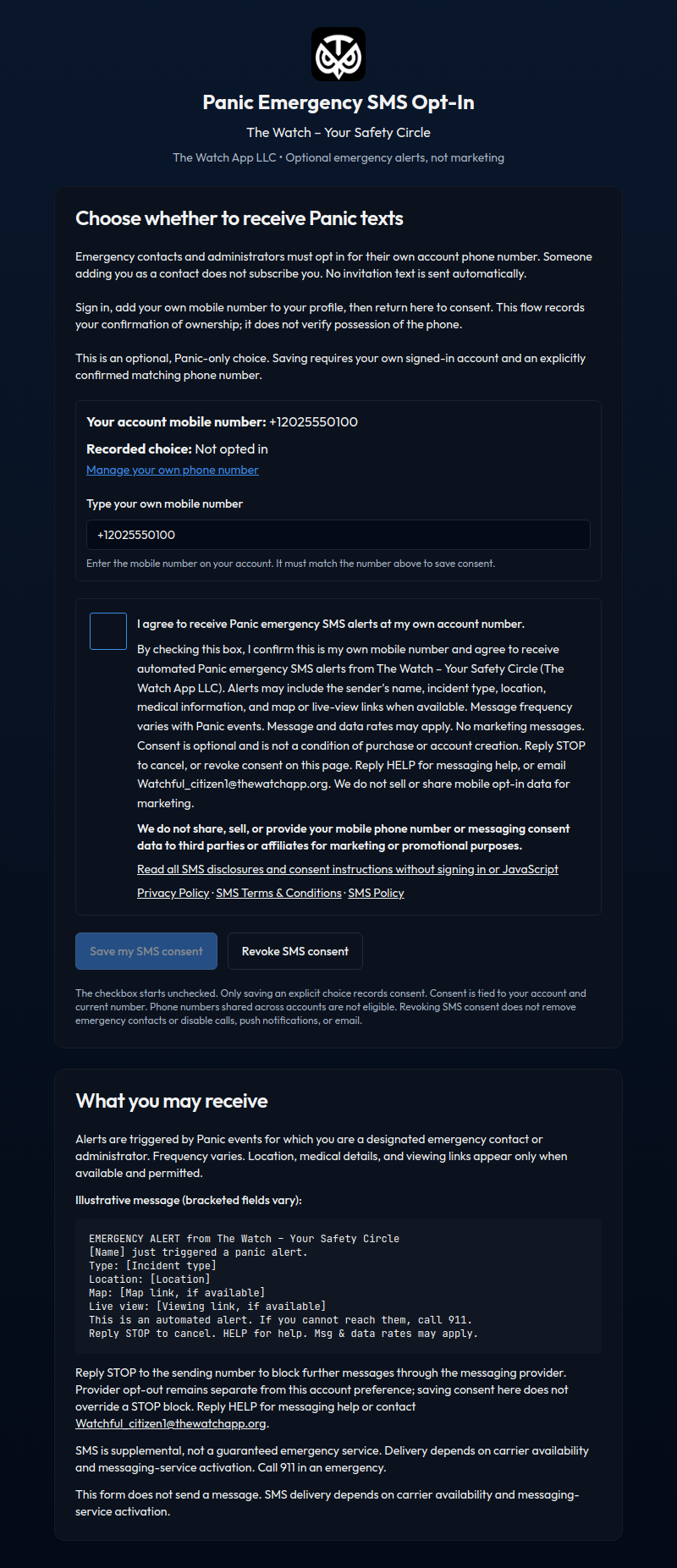
- Read the full disclosure and policy links on the secure SMS consent form. The checkbox is initially unchecked.
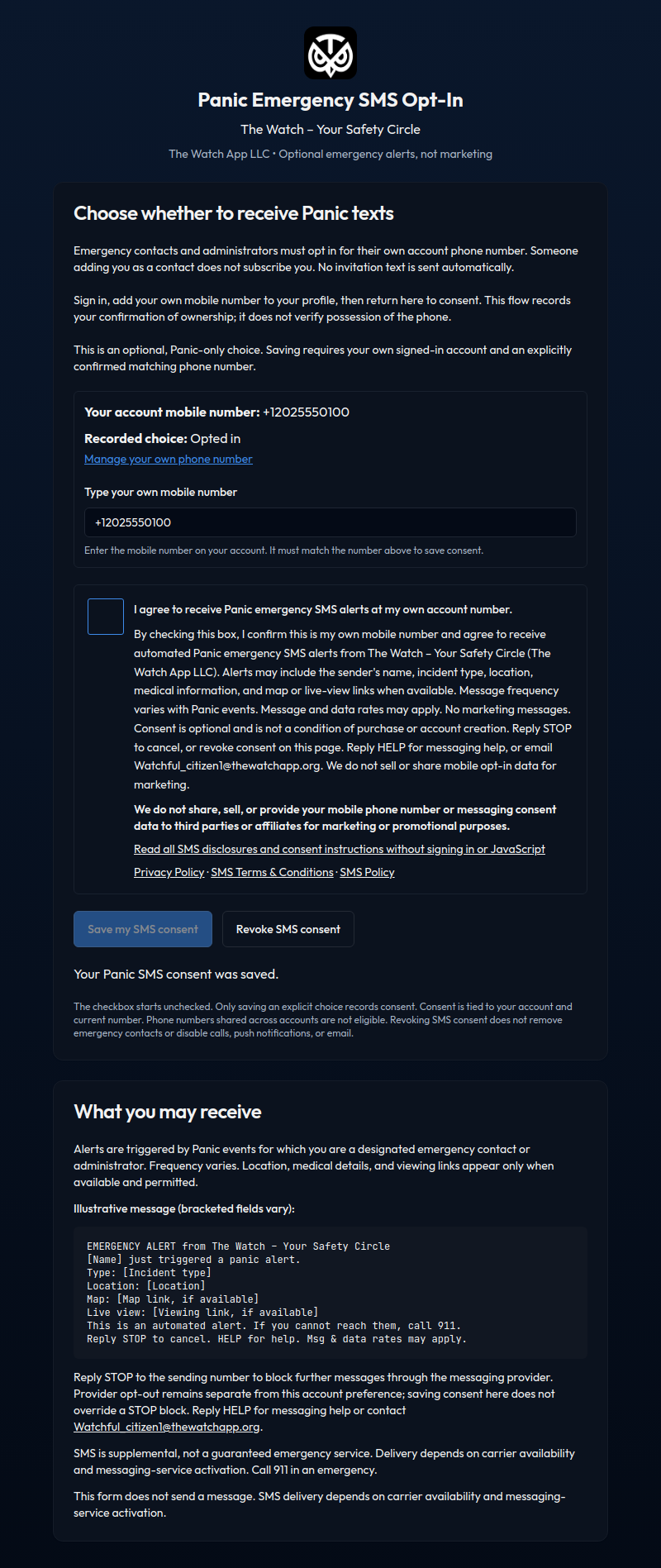
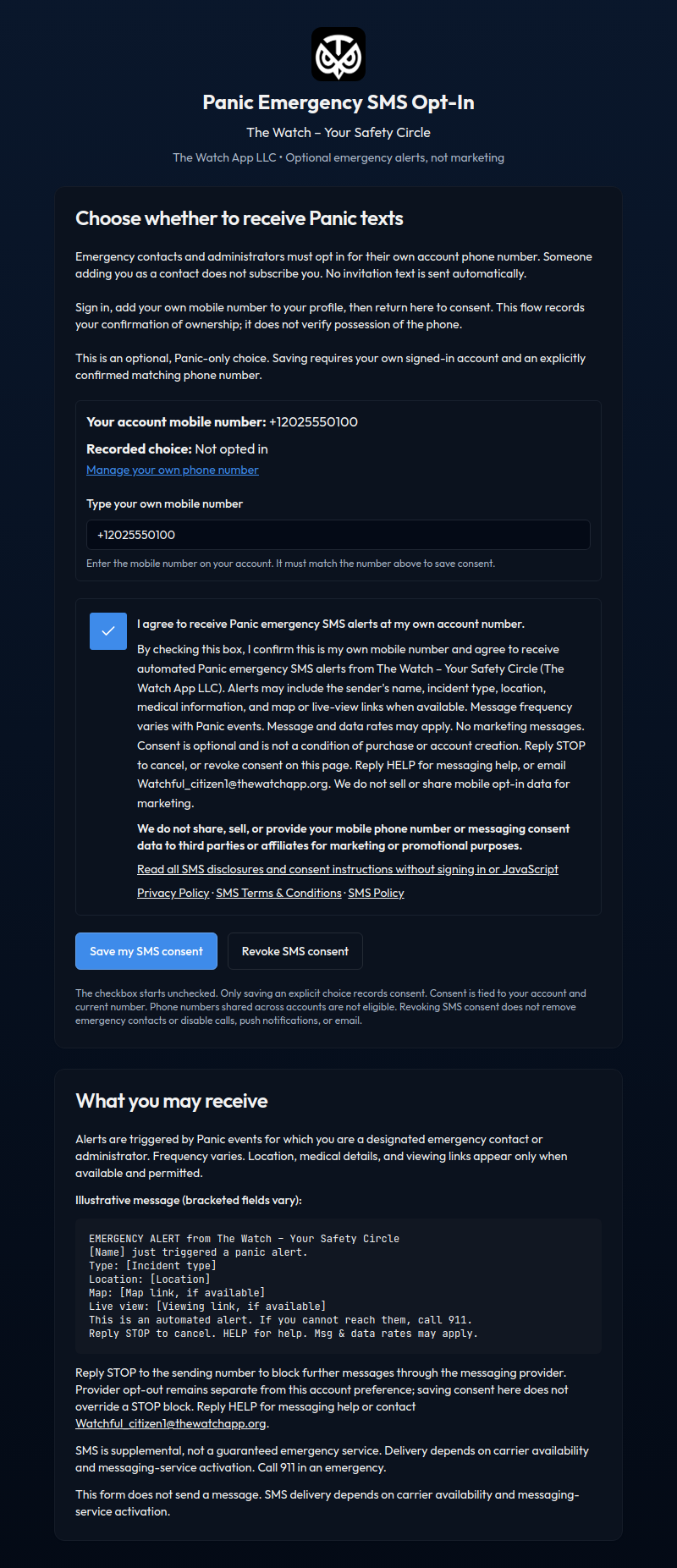
- Select “I agree to receive Panic emergency SMS alerts at my own account number.” Then click “Save my SMS consent.”
Adding someone as an emergency contact does not subscribe them. Consent is optional and is not a condition of purchase or account creation. Member-form ownership is self-attested; these screenshots do not show guest phone verification and do not establish phone possession.
Message frequency varies with Panic events. Message and data rates may apply. Reply STOP to cancel or HELP for messaging help. Website consent does not override a provider STOP block. See the complete public disclosure and SMS terms.
1. Before consent: unchecked and not enrolled
2. Explicit choice: selected but not saved yet
3. After saving: consent recorded